Note: Currently, several deprecated processes from a legacy version of the Sheet Plastic process group are visible (but disabled) in Digital Factories. You can also see the deprecated processes in the Cost Model Workbench. aPriori will be removing all these processes in a future release. The deprecated processes are: 2 Cavities Material Conversion, 2 Cavities Vacuum Forming, 2 Cavities Drape Forming, 4 Cavities Material Conversion, 4 Cavities Vacuum Forming, 4 Cavities Drape Forming, Single Cavity Material Conversion, Single Cavity Vacuum Forming, Single Cavity Drape Forming, and Router (the Sheet Plastic cost model now uses the Router process from the Rotational and Blow Molding cost model as the processes are identical).
Thermoforming Processes
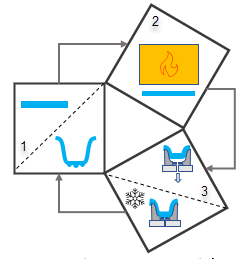
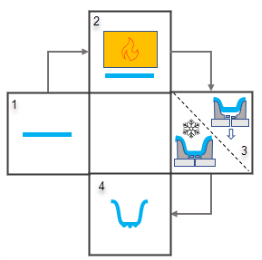
The Sheet Plastic cost model supports four thermoforming processes based on the type of machine used for each process:
-
Single Station Thermoforming. This machine consists of single station which handles one sheet at a time. The machine performs each operation (loading, heating, forming, cooling, unloading) in series.

-
Shuttle Station Thermoforming. This machine consists of two back-to-back single stations, with a shared oven. The machine performs heating operations in parallel with the other stages and requires two sets of tools because it has two forming stations.

-
3 Station Rotary Thermoforming: This machine consists of three stations: a load station, an oven station for heating, and a forming/cooling station. Unloading occurs back at the load station. The sheet is rotated between the stations and each operation occurs in parallel.
-
4 Station Rotary Thermoforming. This machine is similar to the 3 Station Rotary machine, except that it has separate loading and unloading stations, therefore four stations in total.


Thermoforming with a Positive Tool
The figure below illustrates the thermoforming process using a positive tool. The heated sheet is pulled onto the tool while the vacuum is applied. The vacuum pulls the material tight against the tool surface while it is formed. As this is a positive tool, the inside of the part is in contact with the tool (that is, the inside of the part is tool-facing). After the shape is formed, the sheet is cooled to the material’s set temperature (also known as the crystallization temperature). This ensures that it will not deform when it is removed from the machine.

Thermoforming with a Positive Tool and Pressure Box
The figure below illustrates the thermoforming process using a positive tool and a pressure box. After the sheet is pulled over the tool, the pressure box is lowered and creates an airtight environment within the pressure box. The vacuum evacuates trapped air between the plastic sheet and the tool and air is injected into the airtight environment . This increases the forming pressure. Finally, the sheet is cooled and the pressure box retracts to allow the part to be removed.
In starting point Digital Factories, aPriori assumes that pressure forming is not required by default (specified by the cost model variable pressureFormingRequired). Users can choose whether to apply pressure forming using the setup option Pressure Forming Required.

Thermoforming with a Negative Tool
The figure below illustrates the thermoforming process using a negative tool. In contrast to the procedure with a positive tool, the outside of the part is in contact with the tool, and the sheet is pulled into the mold cavity rather than being pulled over it.

Thermoforming with a Negative Tool and Pressure Box
The figure below illustrates the thermoforming process using a negative tool and a pressure box to form the part. The edges of the pressure box contact the outer walls of the negative tool’s cavity (rather than fully encapsulating the entire tool as is the case for positive tool, described above).

Thermoforming with a Negative Tool and Plug Assist Tooling
The figure below illustrates the thermoforming process using a negative tool and plug assist tooling. A plug may be used to control the stretching of the material and prevent excessive thinning as it conforms to the shape of the tool, especially for parts with deep and relatively narrow features. After the plug has been extended, the vacuum pulls the sheet’s surface into contact with the tool and evacuates any trapped air. Typically, plugs are used with negative tools but could potentially be used with a positive tool (for example, it could have a large cavity in its surface).
In starting point Digital Factories, aPriori assumes that plug assist tooling is not required by default (specified by the cost model variable plugAssistToolingRequired). Users can choose whether to use plug assist tooling using the setup option Plug Assist Tooling Required.

Router
The Sheet Plastic cost model uses a CNC router to cut any holes in a thermoformed part and to trim off excess scrap material from the perimeter of the part. aPriori assigns the Router process to the following GCDs:
-
SimpleHole
-
ComplexHole
-
MultiStepHole (comprising SimpleHole child GCDs)
-
Perimeter
You can re-assign any router operation to a No Cost Feature. To do so:
-
Right click the GCD in either the Manufacturing Process panel or the Geometric Cost Drivers panel.
-
Select Edit Operation.
-
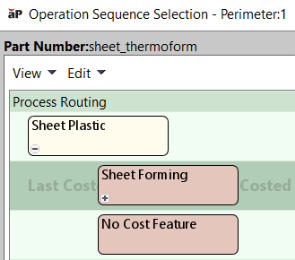
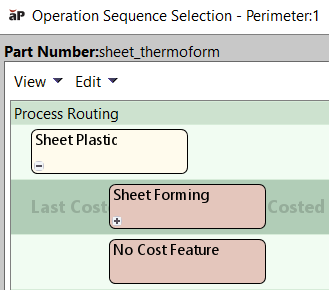
Click the No Cost Feature node in the Operation Sequence Selection panel:
-
Click OK.
-
Click Cost.
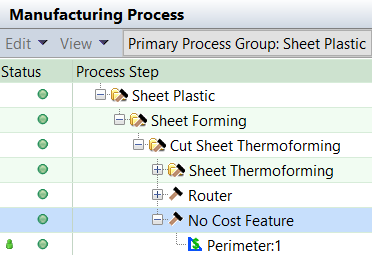
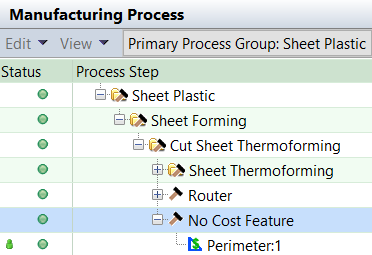
The operation will now be shown as a No Cost feature in the Part Details tab and the Manufacturing Process panel:
You can override the default feed rate for the Router using the Router setup option Router Feed Rate.